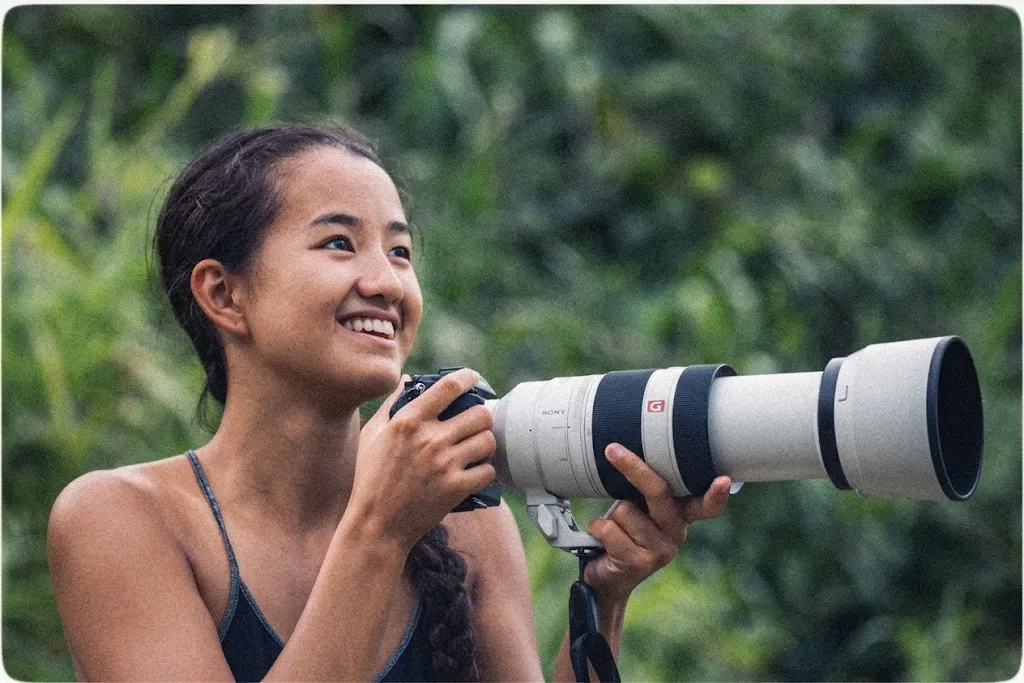
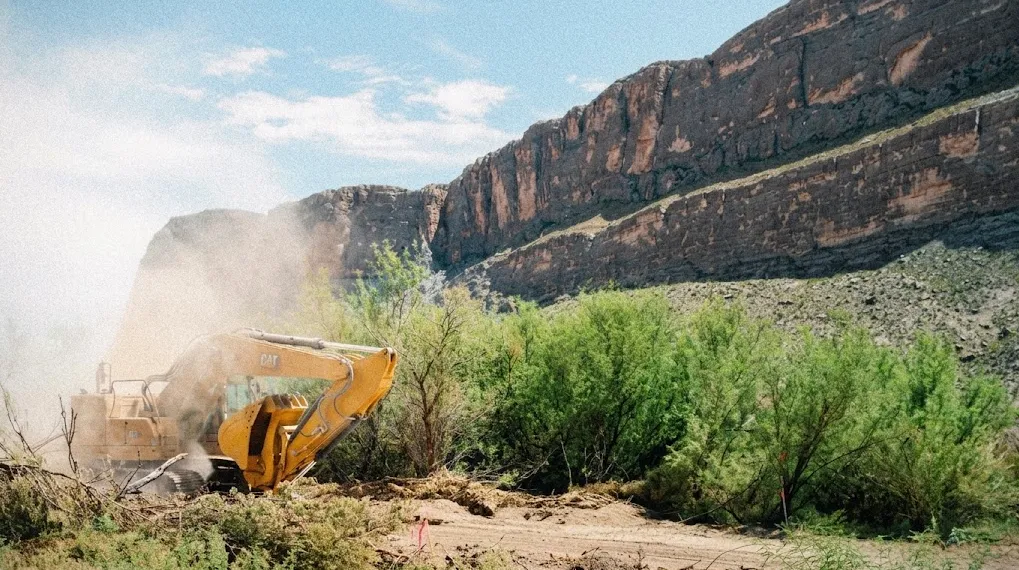
action images: how to pick and frame a photo people stop for
Pick a landscape photo at least 1600 px wide (JPG or PNG, 5MB max), with one clear subject in the middle and no text on it. Then frame it in the app's 16:10 frame and keep faces inside the safe zone.
Your action image is the first thing people see, before your title and your ask. Here's what we recommend, and how to frame it in under a minute.
the short answer
16:10landscape, the shape of the app's frame 1600 pxwide, at least 5MBmax, JPG or PNGThe app frames every action image in 16:10. A photo 1600 px wide stays sharp on big screens, even after you zoom in a little.
what makes a great action image
The app's own advice says it best: "a face, a place, an animal. skip logos and charts."
- one clear subject, in the middle. A face, the forest, the whale. The middle of your photo is the part that shows on every screen.
- your own photo, if you have one. A shot from the ground tells people this is real. No photo? Search Unsplash from inside the app.
- no text in the image. On the feed card, your title, counts and button sit at the bottom over a dark gradient. On a phone, the action page has a dark band at the top, behind the buttons. Text baked into the photo ends up hidden or fighting with them.
frame it in the app
- Tap add an image at the top of the editor, in "start with the story". Pick a photo from Unsplash, or tap upload an image (5MB max). On a computer, you can also drag and drop it.
- "frame your image" opens. Drag to move. Pinch to zoom on a phone, scroll on a computer, or use the − and + buttons. reset puts it back in the middle. Zoom in too far on a small photo and the app warns you: "this crop is small: it may look blurry on large screens. zoom out or pick a bigger image." It won't stop you, but zoom out or pick a bigger photo.
- Keep faces inside the safe zone, the outlined box in the middle of the frame. As the app puts it: "keep faces and text inside the safe zone: it shows everywhere."
- Check "how it looks". Two live previews, feed card and action page, follow every move. Tap one to see its crop on the frame.
- Tap use this image. On a draft, it saves right away. On a live action, tap save to publish the change.
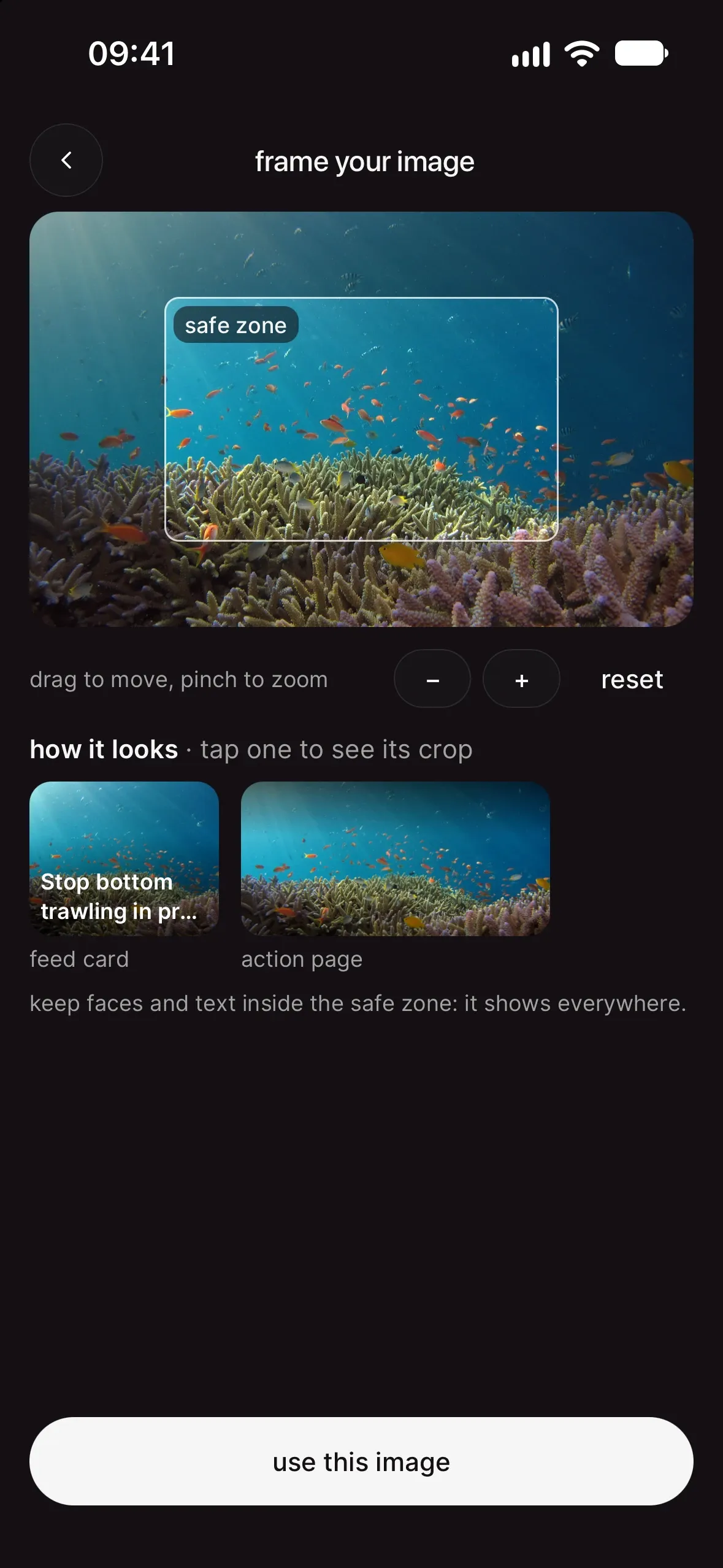
Changed your mind? Tap adjust framing on the image in the editor. We keep your original photo, so you can reframe it anytime without picking it again.
Picked your image from Unsplash before the framing editor existed? Tap edit image and pick it again, and you can frame it from then on.
from the chilli team
When the chilli team prepared your action and it has no photo yet, the review ends on choose a photo: the photo is always your call. More in review what the chilli team prepared for you.
your next move
Image sorted. Now give it a title people act on: the CTA formula: how to write an action title people can't ignore. Then make it travel: make it shareable: turn your supporters into recruiters.