review what the chilli team prepared for you
Sometimes the chilli team writes ways to help, updates or a whole new action for you. You go through them one card at a time and approve (or publish), edit or decline each one. Nothing goes out without your ok.
Running a fight is a lot. The news moves, a vote gets moved, a new target pops up, and you've got a life too. So sometimes we do some of the legwork for you. You stay in charge of every word that goes out.
what the chilli team prepares for you
The chilli team is the people behind chilli. Part of our job is helping you run your actions: we follow your fight, dig up the facts and write the boring bits so you don't start from a blank page.
We can prepare three things:
- a way to help: one task for your supporters (the people who follow you on chilli or take part in your actions), like an email to a minister or a comment on a CEO's post. See ways to help, explained: every type of action on chilli.
- an update: a short post on your action page that tells your supporters what happened. See close the loop: show your supporters their action mattered.
- a new action: a whole new page for a new fight, with its title, image, intro, ways to help and sometimes a first update.
Each one comes with a short note from us: why it matters right now, plus the sources we used, so you can check our homework before your name goes on it.
how you know something is waiting
You'll spot it in four places:
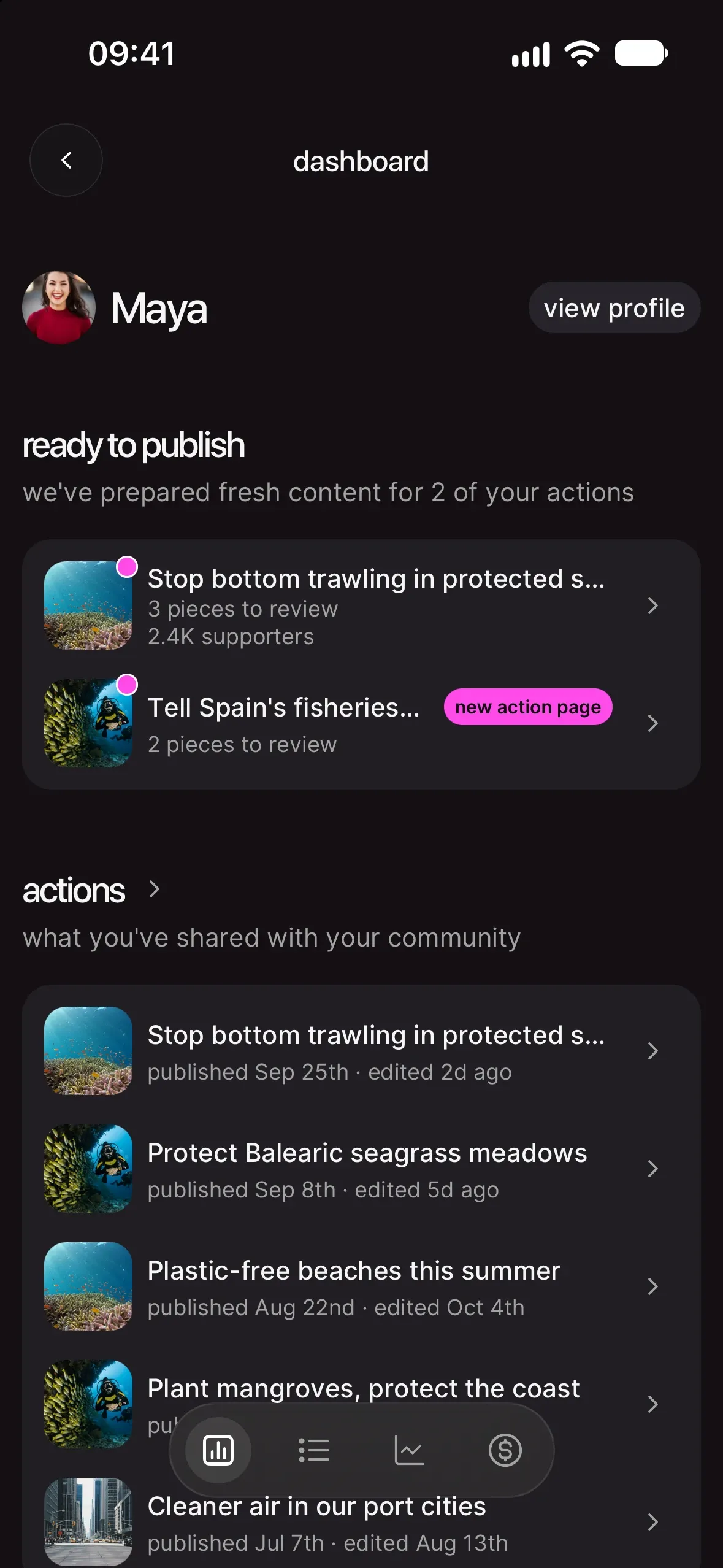
- a pink dot on the dashboard icon: the tab in the bottom bar on mobile, or dashboard in the left sidebar on a computer.
- ready to publish, a section on your dashboard: "we've prepared fresh content for 2 of your actions". Each row is one action, with how many items wait for you ("3 pieces to review") and, once it has supporters, how many it has. A new action page tag means we prepared the whole action. Tap the row to start.
- a banner on your updates page. Open your action and tap post an update. If we prepared something for that action, the banner says "chilli prepared 2 things for you". Tap review in your inbox.
- a notification on your phone when something new is ready, as long as notifications are on (in settings, under notifications).
All four lead to the same place: the review screen for that action.
review it, one card at a time
The review screen shows one card per item, with your action's title at the top and a counter like "1 of 3".
- Look at the card. The tag at the top says what it is: the type of way to help (an email, a phone call...) or update. Below it, you see the content as your supporters will see it.
- Read our note. At the bottom, a message from chilli team explains why we made it. Tap read more to open "a word from the chilli team", with the full note and the sources. Tap a source to open it in your browser.
- Decide. Tap approve on a way to help, or publish on an update. Not your thing? Tap decline. We ask "decline this?" first: tap decline again to confirm, or cancel.
- Move on. The next card slides in. To go back and forth, swipe on your phone, or use the arrows at the top anywhere. On a computer, the left and right arrow keys work too.
change anything before it goes out
See a pencil at the top right of the card? Tap it to edit. A way to help opens in the same editor you use when you create one. An update opens in the update editor: change the text or the media, then tap save.
An update we prepared without text (a milestone image, say) shows add a personal message. It's optional, but a few words from you make it feel personal: tap it to open the update editor.
Editing only saves your changes. Nothing is published yet. You land back on the card, with your version on it, and you still choose approve, publish or decline.
what happens when you say yes
on an action that's already live
Your way to help or update goes live right away. Your supporters get notified, and the screen counts them for you: "120 supporters will be notified". Updates go out by email within a few minutes. Tap keep reviewing to go to the next card.
on an action that isn't live yet
Nothing goes out yet. Your way to help or update is ready: "nobody can see it yet". It goes live with your action, and your supporters hear about it then.
a whole new action
When we prepare a new action, it waits for you as a draft. Its cards are its ways to help and updates: approve the ones you like. Want to change the title, image or intro? You can edit the action like any other, before or after it goes live.
the last card
Once every card has a decision, the last one shows what you did ("2 published", "1 declined") and your next step:
- your action has no photo yet: "one last thing", "choose the photo your supporters will see first." Tap choose a photo, then publish action. The photo is always your call: action images: how to pick and frame a photo people stop for.
- your action isn't live yet: "ready to go live?". Tap publish action so your community can start taking part. Want a different image? Tap change photo on the action card first. Not yet? Tap back to dashboard.
- your action is live: "now, tell your supporters". Tap share my action to post the link in your stories, or see my action page.
good to know
can something go out without me?
No. Everything we prepare waits for you. You approve it, publish it or decline it, and only then does anything change on your action.
can I edit everything?
Yes. Use the pencil on the card before you approve, or edit your action, ways to help and updates later, like anything you made yourself.
is it rude to decline?
Not at all. Declining is a normal answer: it's your name on the action. Declined items are never published, and nobody gets notified.
what if I close the review halfway?
Close it whenever you like. Whatever you haven't decided stays in ready to publish on your dashboard, and the pink dot stays on until you've been through it all.
I run my action with another creator. Who decides?
Either of you can review. Whoever decides first wins. If the other person already approved or declined a card, you'll see "already decided" and move on to the next one.
a card says "no longer available"
That means we took it back (the news changed, or we found a better angle). Nothing to do: the review moves on.
your next move
Got a pink dot? Open your dashboard and go through ready to publish. Then share what you published: share your action: captions, stories and reels that get people moving.